Practical browser-based compression workflow.On this page
Why this guide matters
Compressing an image to 20KB sounds easy until you try it with a modern phone photo. A simple selfie can be 2MB to 8MB, and many upload portals still ask for a tiny file.
Many people make the same mistake: they lower image quality directly and then wonder why the face becomes muddy or the text becomes unreadable. In most cases, resizing the image first gives a much better result.
This guide shows a practical way to compress image to 20KB on mobile and desktop, with less visible quality loss and a cleaner workflow.
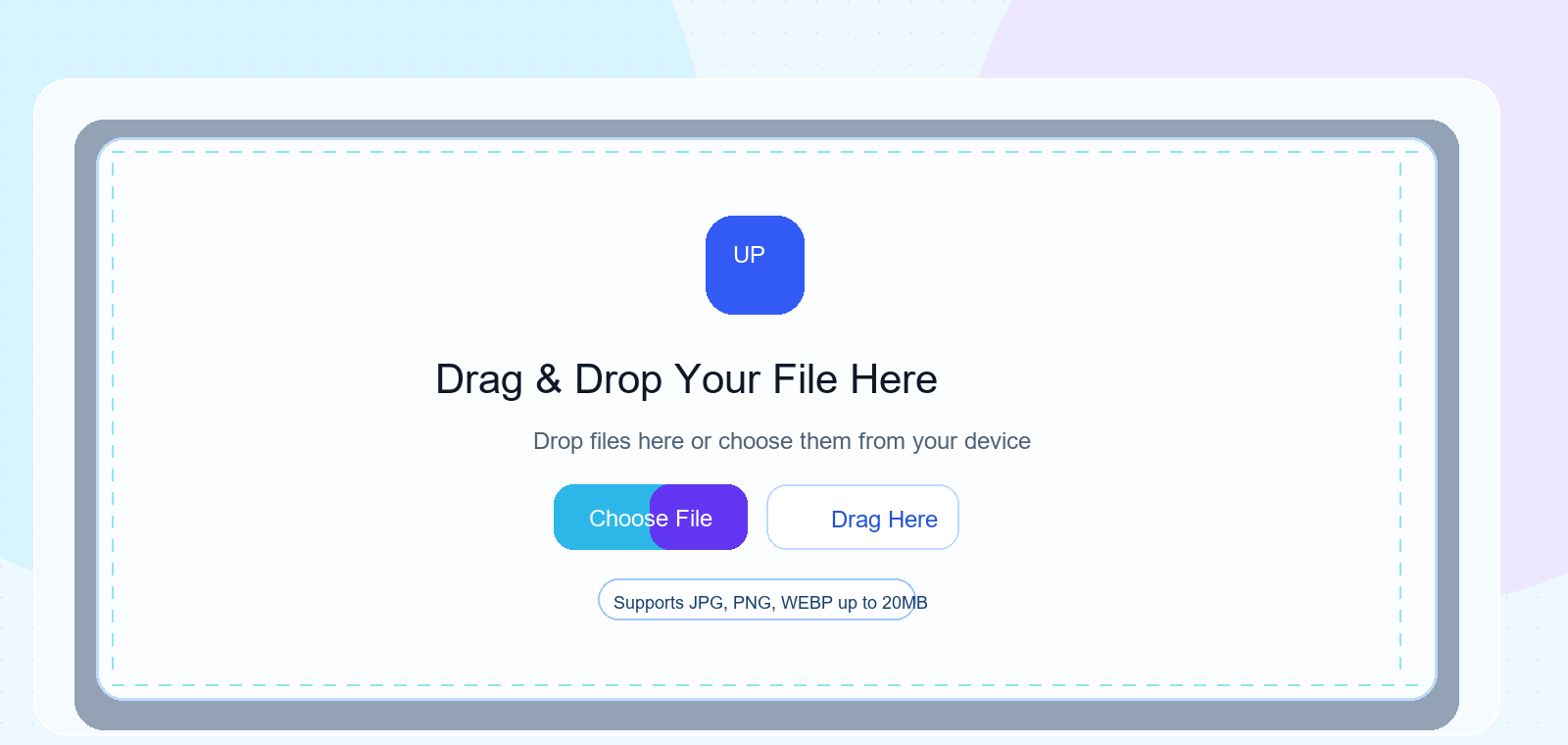
Upload screen: drag and drop an image, or choose a file from your device.
Why 20KB is a tough target
20KB is very small. It is enough for many form uploads, but it is not generous for detailed photos. A passport photo with a plain background compresses better than a busy outdoor image with trees, shadows, and small details.
That is why a good compressor should balance three things: dimensions, format, and quality. If one of those is handled badly, the final result can look cheap even if the file size is correct.
What usually works best
Start with a reasonable image size. For many forms, a width around 600 to 800 pixels is enough. Then use JPG compression carefully. This keeps the result clearer than forcing a large 3000px image down to 20KB.
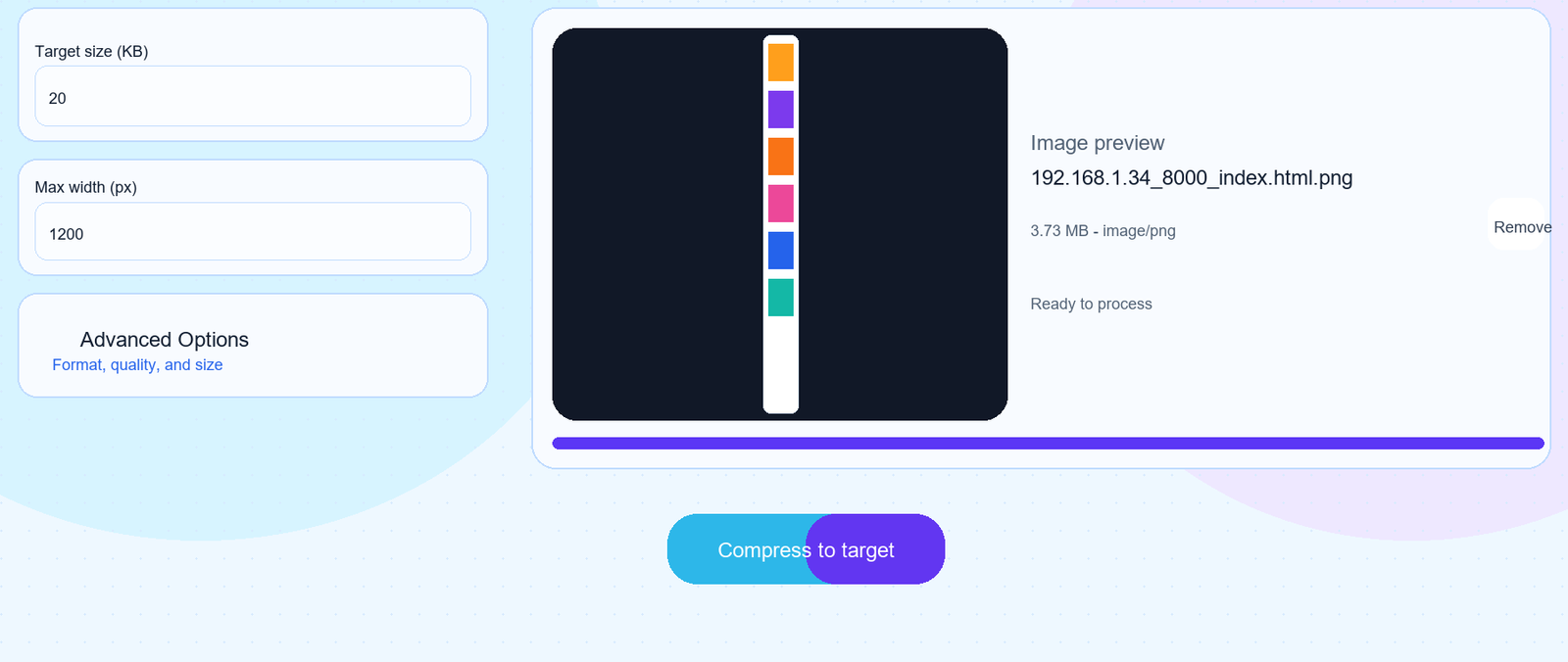
Settings screen: set the 20KB target, preview the uploaded image, then compress to target.
Open ToolsLuv in your phone browser, tap the upload area, and choose the image from Gallery, Photos, or Files. After compression, zoom in slightly and check the face, text, and edges before downloading.
This is especially useful for job forms, school portals, exam forms, and ID photo uploads where users often work directly from a phone.
On desktop
Drag and drop the file into the tool, preview the result, and save it. Desktop is better when you want to compare the original and compressed version more carefully.
Choose the right format before compression
The format matters more than many users realize. JPG is usually the best choice for photos. PNG is useful for graphics and transparency, but it can be hard to push a large PNG photo under 20KB.
WebPModern web images and lightweight previewsBest
If your image is PNG and does not need transparency, PNG to JPG can help. If you want modern web optimization, try Convert Image to WebP.
Common mistakes that ruin image quality
Compressing huge photos directly
A 4000px photo forced to 20KB often looks worse than a resized 700px photo.
Compressing again and again
Repeated compression damages the same pixels multiple times. Go back to the original file when possible.
Ignoring preview
Always open the result. A file can be under 20KB and still be unusable.
One practical warning: if the image contains tiny text, 20KB may not be realistic. Use a higher size target if the upload portal allows it.
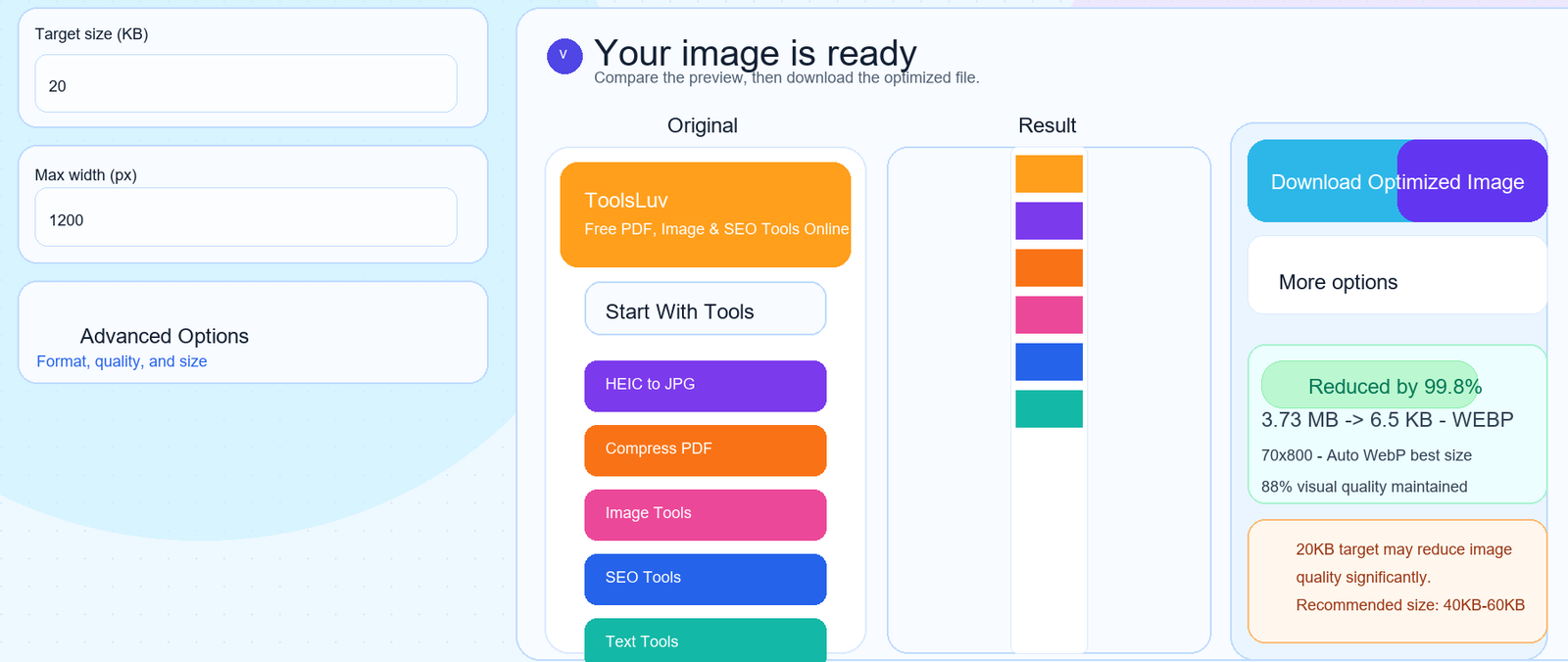
Result screen: compare original vs optimized output and download the compressed image.
Privacy: why browser-side compression helps
When you compress passport photos, ID images, signatures, or personal documents, privacy matters. A lot of tools require a server upload before they process the file.
ToolsLuv image compression is designed as a browser-side workflow when possible. That means No server uploads are needed for these image tools, and Private photos and documents stay on your device.
This matters for students, job applicants, creators, shop owners, and anyone handling personal files on a shared or mobile connection.
Frequently Asked Questions
Can I compress image to 20KB without losing quality?
You can reduce visible quality loss, but some image data must be removed to reach 20KB. Resize the image first, then apply balanced compression for the cleanest result.
Are my images uploaded to a server?
ToolsLuv image compression workflows are browser-side when possible. No server uploads are needed for these image tools, and private photos and documents stay on your device.
Why does my 20KB image look blurry?
The original image may be too large or too detailed. Reducing dimensions first usually looks better than forcing the quality slider very low.
Which format is best for a 20KB photo?
JPG is usually best for photos. PNG is better for transparent graphics, but it can be harder to reduce to 20KB.
Can I do this on mobile?
Yes. Open ToolsLuv in your phone browser, upload from gallery or files, preview the compressed result, and download the final image.