Compress PDF Online Free: Reduce PDF File Size Without Quality Loss
A practical guide to making PDFs smaller for email, job forms, college submissions, government portals, and everyday uploads without making the file look broken.
PDF compression guideLast updated: May 20264 min read
On this page
Why compress PDF files?
PDF size problems usually show up when you are already in a hurry. An email attachment bounces. A job application portal rejects your resume. A college submission page says the file is too large. A government form upload fails at the last step.
A good compress PDF online workflow helps you reduce PDF size without opening heavy desktop software. You upload the PDF, choose a sensible compression level, preview the result, and download a smaller file.
For everyday files, the goal is not to crush the document as much as possible. The goal is to reduce PDF file size enough for sharing while keeping text, stamps, signatures, and scanned pages readable.
Need the compressor now?Upload your PDF, choose a compression level, and download a smaller file in seconds.
The best PDF compressor is the one that makes the file smaller without making you second-guess the result. If a page is full of scan marks or tiny form text, preview matters more than chasing the lowest possible KB number.
ToolsLuv is built for quick daily compression: compress PDF free, check the result, and move on. It works well for resumes, invoices, reports, scanned IDs, school work, and upload forms.
A practical pdf compressor online should make common targets easier too: compress PDF to 200KB, compress PDF to 100KB, compress PDF to 500KB, or simply shrink PDF file size enough for email. If you need to compress large PDF files, start with balanced compression and check the preview before choosing a stronger setting.
Who should use Compress PDF?
This tool is useful for anyone who has a PDF that is just a little too heavy. Not a design problem, not a full editing job, just a file-size problem.
Students
Assignments, scanned notes, admission forms, and college submissions often have strict upload limits.
Job seekers
Resume uploads and certificate bundles sometimes need a smaller PDF before the form accepts them.
Businesses
Reports, invoices, brochures, and monthly statements are easier to send when the file is lighter.
Freelancers
Client files, proposals, and signed documents should be small enough to share without friction.
Teachers
Study material and scanned handouts become easier to upload to classroom platforms.
Government forms
Portal uploads often ask you to reduce PDF size for upload before submission.
Compress PDF without losing quality
The phrase compress PDF without losing quality sounds simple, but it really means “keep the document readable.” Text should remain sharp, scanned pages should not become muddy, and signatures should still look clear.
Use a medium compression level first. If the PDF is still too large, compress again with a stronger setting. This is usually better than using the most aggressive option immediately.
Scanned PDFs need extra care because each page is basically an image. When you compress scanned PDF files, check names, numbers, QR codes, and small stamps before uploading the final version.
Compress PDF for email and uploads
Email limits are one of the biggest reasons people search for a PDF compressor. If Gmail, Outlook, or a company portal refuses your attachment, you need to compress PDF for email without ruining the document.
Upload portals can be even stricter. Some ask for 500KB. Some ask for 200KB. Some job forms or government sites reject large PDF files without explaining much. A reduce PDF size online free tool saves time in those moments.
If your document is made from images, try reducing image size before converting to PDF. Tools like JPG to PDF and PDF to JPG can help when you are rebuilding a cleaner file from images.
Secure browser-based PDF compressor
A secure browser-based PDF compressor should feel simple: no software, no installation, no account just to shrink a PDF. ToolsLuv keeps the workflow focused on the browser wherever possible.
For sensitive files, use common sense. Keep the original PDF, review the compressed result, and avoid random upload sites that do not explain what happens to your document.
When possible, browser-based and encrypted processing are better habits for routine paperwork because the file does not need to pass through a long, unclear queue.
How to compress PDF online
01
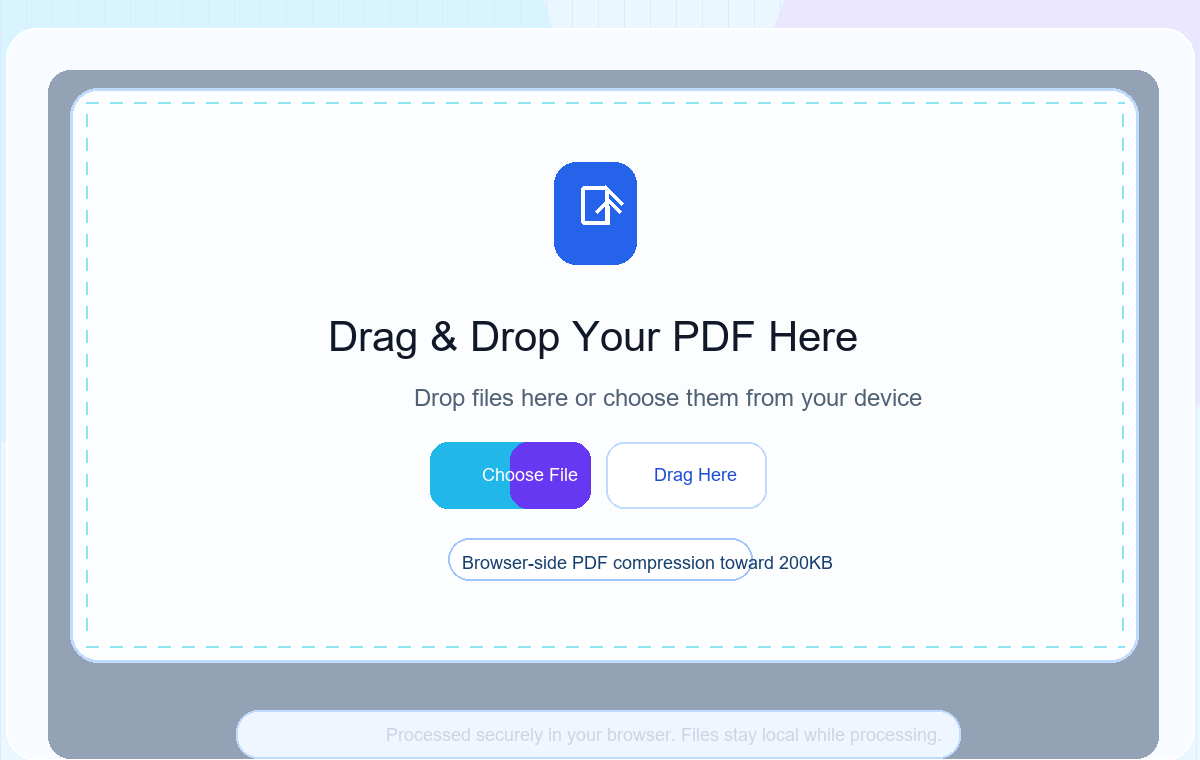
Upload PDF
Open the compressor and choose the PDF from your device. Start with the original file, not a screenshot copy.
Upload screen: choose the PDF you want to make smaller.02
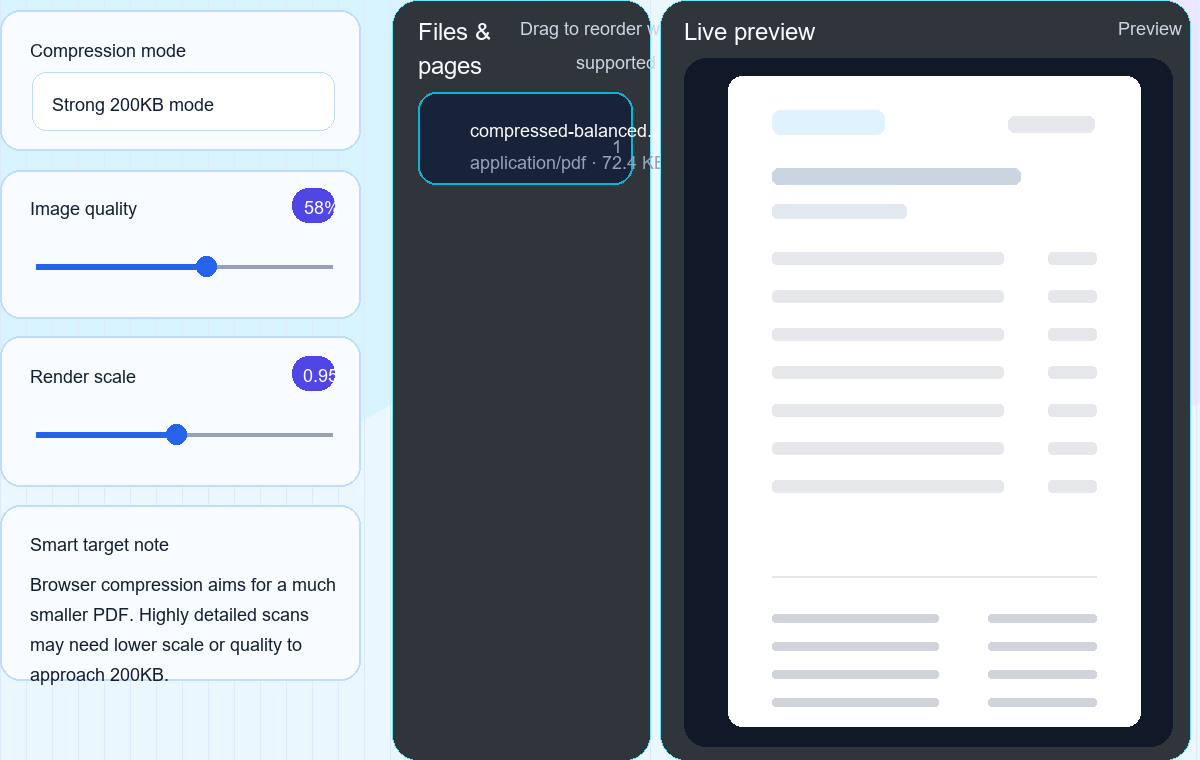
Choose compression level
Use balanced compression first. Pick stronger compression only when a portal needs a very small target.
Compression settings: choose a target that keeps the document readable.03
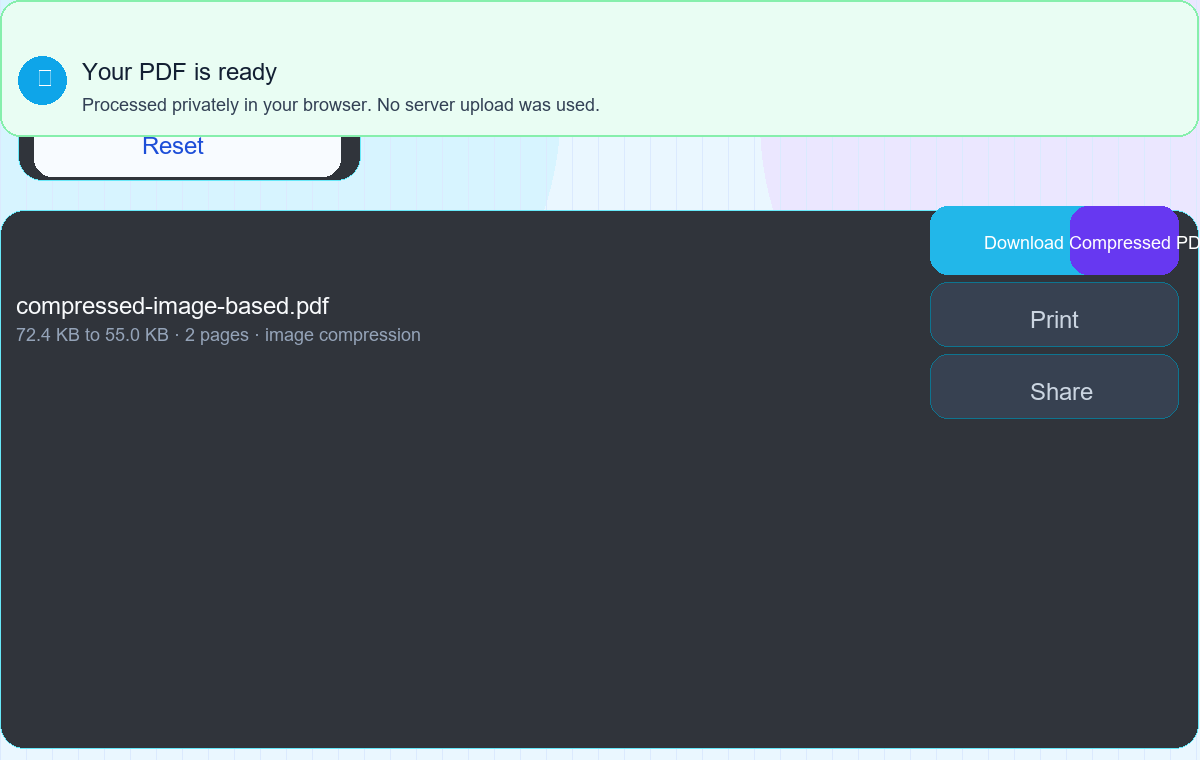
Preview result
Check the estimated size and quality before downloading. This is where you catch blurry scanned pages.
Processing screen: the PDF is compressed and checked before export.04
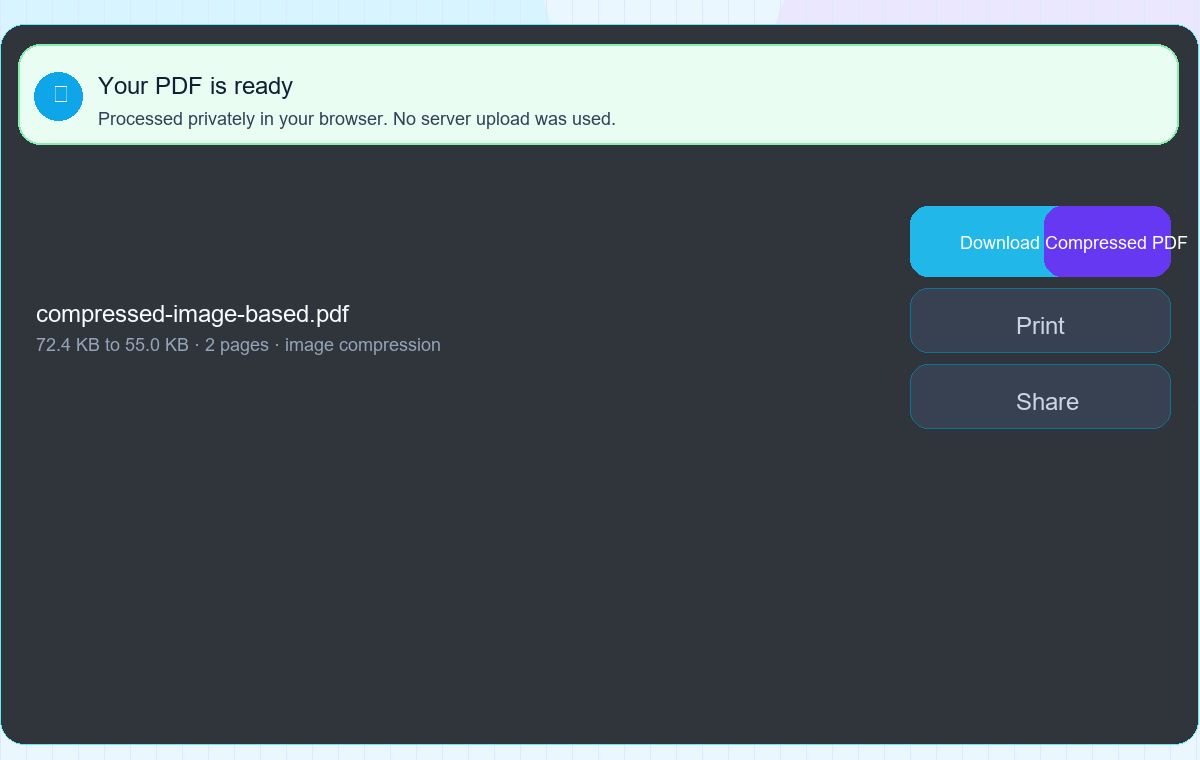
Download compressed PDF
Save the smaller PDF and open it once before sending. That final check is worth the few seconds.
Download result: compare original and compressed size before sharing.
Benefits of using ToolsLuv Compress PDF
A smaller PDF is easier to send, upload, store, and archive. It sounds boring, but it removes a lot of tiny delays from daily work.
Smaller files
Shrink PDF file size for portals, emails, and document storage.
Faster uploads
Large PDFs take longer to upload and fail more often on slow connections.
Easy sharing
Compressed PDFs are simpler to send over email, chat, and client portals.
Better storage
Smaller files make folders cleaner, especially for repeated reports and scans.
If you need to arrange documents before compression, start with Merge PDF. If you only need a few pages, use Split PDF first. For editable text, PDF to Word may be the better route.
Compress PDFs on mobile
You can compress PDF on mobile when the file is saved in Downloads, Files, Drive, or email. The process is the same: open the tool, choose the PDF, select compression, preview, and download.
Mobile is perfect for urgent files under normal size. For very large scanned PDFs, desktop usually gives the browser more breathing room.
ToolsLuv vs desktop PDF software
If all you need is to reduce PDF size, a browser tool is often faster than opening a full desktop editor.
FeatureToolsLuv Compress PDFDesktop PDF software
SetupOpen the page and upload PDFInstall, update, and configure software
Best forFast upload limits and email attachmentsAdvanced editing and print production
SpeedQuick for everyday PDF compressionUseful but heavy for small jobs
Common mistakes to avoid
Over compression
If the PDF becomes unreadable, the file is not really useful anymore. Step down the compression level and try again.
Compressing already optimized files
Some PDFs are already small. A second compression may not help much and can make images worse.
Ignoring preview
Always open the compressed PDF before sending it. Check small text, QR codes, stamps, and signatures.
Pro tips for cleaner PDF compression
Start with medium compression before trying a hard target like compress PDF to 200KB.
Check image-heavy files carefully because photos and scans lose detail faster.
Preview before sending, especially for forms, IDs, certificates, and scanned pages.
Use PDF to PowerPoint only when the file needs to become a presentation, not just smaller.
Keep the original PDF until the compressed file has been accepted by email or the upload portal.
Reduce PDF Size in Seconds
Compress your PDF in ToolsLuv
Upload your PDF, choose a compression level and download a smaller file instantly.
Yes. ToolsLuv gives you a compress PDF free workflow for everyday files, forms, resumes, reports, and upload portals.
Will PDF compression reduce quality?
A balanced setting should reduce PDF file size while keeping text and images readable. Very aggressive compression can affect image-heavy or scanned PDFs.
Can I compress PDF on mobile?
Yes. You can compress PDF on mobile from your phone browser. For very large PDF files, desktop usually feels smoother.
Is my PDF stored on servers?
ToolsLuv focuses on browser-based PDF tools where possible. Always check the tool page notes before working with highly sensitive documents.
What is the maximum file size?
The practical limit depends on your browser, device memory, and the PDF itself. Large scanned PDFs need more memory than simple text PDFs.
Can I compress multiple PDFs?
For daily work, compress files one by one so you can check each result. If you need one final document first, use Merge PDF before compression.
How much can a PDF be compressed?
It depends on what is inside. A scanned PDF with large images can shrink a lot. A text-only PDF may already be optimized and shrink only a little.
Does compression affect text clarity?
Normal text usually stays clear. The bigger risk is over-compressing scanned pages or photos inside the PDF.
Can I compress scanned PDFs?
Yes, you can compress scanned PDF files, but preview the result carefully because scans rely on image clarity.
Which PDF compressor is best?
The best PDF compressor is fast, clear, privacy-aware, and lets you preview the result before sending it anywhere.
Can I compress PDF to 200KB?
Sometimes. Compress PDF to 200KB works best when the original file is not too large or image-heavy. If quality drops too much, choose a slightly higher target.
Can I compress PDF for email attachments?
Yes. Compress PDF for email when the file is above the attachment limit or takes too long to send.