A practical guide to splitting PDF pages into separate files in your browser—upload once, choose how many pages each part should contain, and download the results without rewriting your original document.
Browser-basedNo server uploadLocal workflowFiles stay on deviceFreeNo registrationUp to 20 MBPDF limitMobileFriendly
Split PDF guideUpdated 2026-11-265 min read
On this page
You may need to split a PDF into separate files when one document is too large for email, when a portal wants only part of a report, or when scanned pages should be shared in smaller batches. Learning how to split PDF files—or simply how to split a PDF—does not have to mean installing desktop software or guessing which pages ended up in which file.
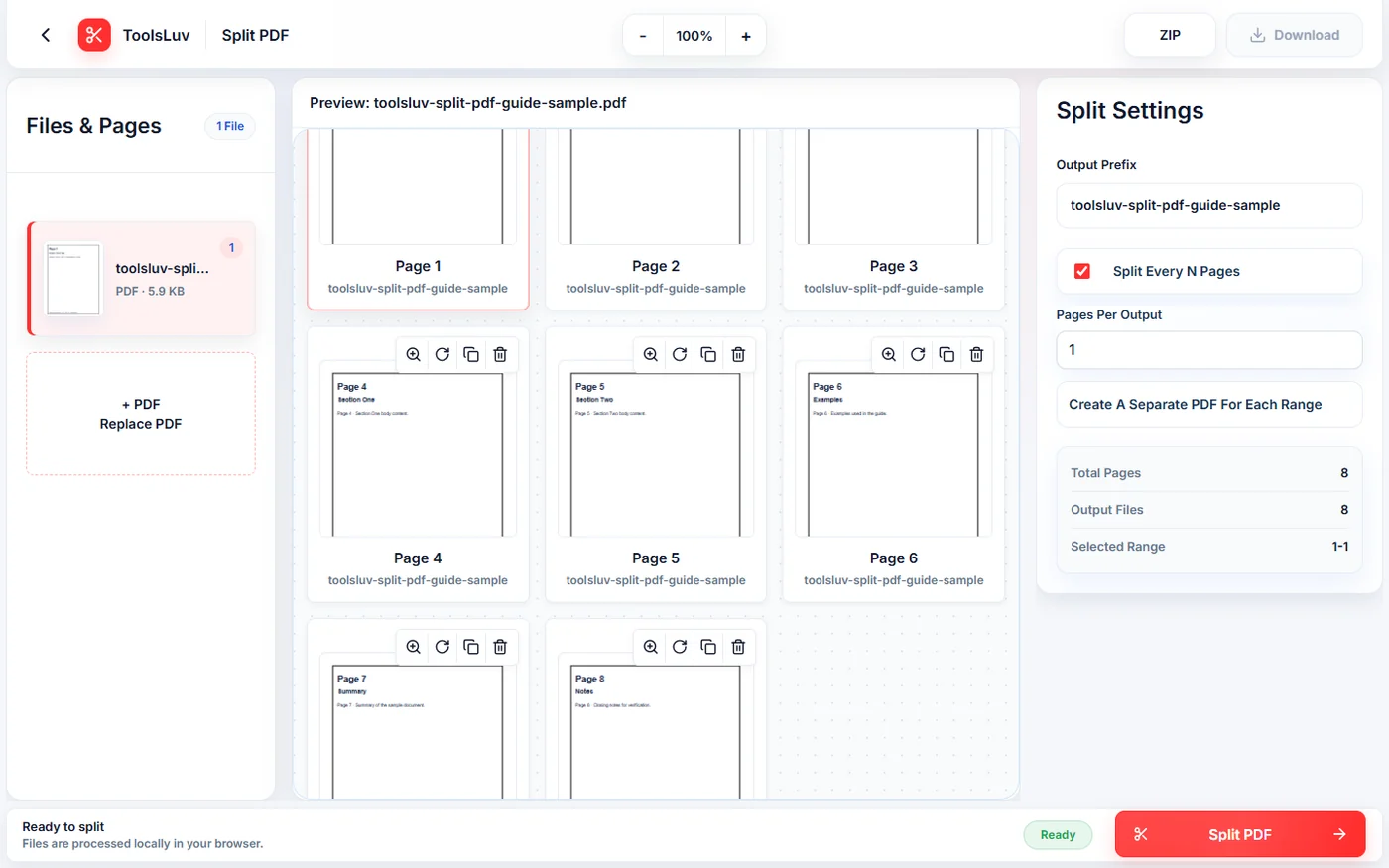
ToolsLuv Split PDF runs in the browser. You choose a PDF (up to 20 MB), preview its pages, turn on Split Every N Pages, set Pages Per Output, optionally edit the Output Prefix, and click Split PDF. The tool builds new PDF parts you can download one by one or together as a ZIP. Your original file on disk is not rewritten—only new downloads are created.
This guide explains what that workflow actually does, how it differs from extract and delete tools, and how to choose a sensible value for N when you want to split PDF pages into smaller parts.
What does it mean to split a PDF?
Splitting means taking one PDF and producing multiple PDF files from its pages—the same outcome people look for when they search how to split a PDF into multiple files. In ToolsLuv, the main control is sequential grouping: every output file contains the next N pages from the document, in order, until all pages are used.
That is different from editing the source PDF in place. After a split, you still have your original upload in the browser session, and the copies already on your computer stay unchanged until you save over them yourself. The tool generates new files such as Prefix_page_1.pdf (single page) or Prefix_pages_1-2.pdf (a page-group label in the filename).
ToolsLuv creates consecutive page groups using the Pages Per Output setting. The current workflow does not let you enter arbitrary page ranges such as 1–3 and 4–6 manually. A Create A Separate PDF For Each Range checkbox may appear in the interface, but in tested use it does not change how pages are grouped—the split still follows Split Every N Pages. For a custom selection of non-consecutive pages, use Extract PDF Pages instead.
Split PDF vs extract vs delete vs merge
People often search how to split PDF pages when they really need extract, delete, or merge. Each job has a different outcome.
Action
General meaning
Result
Split PDF
Divide a document into consecutive page groups
Multiple PDF files
Extract pages
Keep selected pages only
A new PDF with chosen pages
Delete pages
Remove unwanted pages
A revised single PDF
Merge PDF
Combine separate PDFs
One combined PDF
Split in ToolsLuv divides the whole document into consecutive chunks of N pages. Extract PDF Pages is better when you want only specific page numbers in one new file. PDF Page Deleter removes pages and leaves one trimmed PDF. Merge PDF combines multiple PDFs into one file—the opposite direction.
If you need to change page order before splitting, use Reorder PDF Pages first, then split the reordered export.
Which splitting method should you choose?
Use ToolsLuv Split PDF when you want sequential groups through the whole file:
N = 1 — every page becomes its own PDF.
N = 2 or more — each output holds that many pages (the last file may be shorter).
Choose extract, delete, or merge when the job is not “cut the whole PDF into equal-size consecutive parts.”
Ready to split?Upload your PDF, set pages per output, and download the parts in your browser.
Open ToolsLuv Split PDF. No account is required for the standard workflow shown on the tool trust badges.
Select or drop a PDF up to 20 MB.
Wait for the page preview so you can confirm page count and order.
Turn on Split Every N Pages and set Pages Per Output.
Optionally change the Output Prefix so downloaded names are easy to recognise.
Review the summary counts (Total Pages / Output Files).
Click Split PDF.
Review the generated parts.
Download individual PDFs or use Download ZIP.
Load a PDF and review its pages before choosing how to split it.
How to split every page into a separate PDF
When Pages Per Output is 1, ToolsLuv creates one PDF per page. A 5-page document becomes five files. An 8-page sample becomes eight files. Filenames follow the single-page pattern, such as Prefix_page_1.pdf.
Use this when each scanned sheet must be uploaded separately, or when slides should be shared one at a time. Pick N = 1 only when you truly need one file per page—otherwise larger groups keep downloads manageable.
How to divide a PDF into smaller parts
Setting N to 2 or 3 is a common way to split a PDF into smaller parts—and to split PDF into multiple files of a predictable length—without creating dozens of one-page downloads.
N = 2 on an 8-page PDF → 4 files: pages 1–2, 3–4, 5–6, 7–8 (names like Prefix_pages_1-2.pdf).
N = 3 on an 8-page PDF → 3 files: pages 1–3, 4–6, and a final part with pages 7–8.
A 12-page document with N = 3 produces four 3-page parts.
Smaller groups help with document sharing and organisation. Splitting does not automatically compress content—if parts are still too heavy for email or a portal, run Compress PDF after splitting. Do not assume the parts will fall under a specific size limit.
Set the number of pages for each output file before running the split.
How separate page groups work
In ToolsLuv Split PDF, page groups are automatic sequential ranges, not a text box where you type 1-3, 4-6. The tool walks from page 1 to the last page and cuts the PDF every N pages.
Examples for an 8-page PDF:
N = 2 → 1–2, 3–4, 5–6, 7–8
N = 3 → 1–3, 4–6, 7–8
N = 4 → 1–4, 5–8
For arbitrary page picks (for example only pages 2, 5, and 9), use Extract PDF Pages instead. For removing pages entirely, use PDF Page Deleter.
Downloading split PDF files
After splitting, the result area lists each generated part. You can download files individually or use Download ZIP when you want every part in one archive.
Check the filenames (they include page labels such as _pages_1-2) and open at least one part before you share files. The final group may contain fewer than N pages when the total does not divide evenly.
Keep the original PDF until you are satisfied. Splitting creates new downloads; it does not replace the file already saved on your device.
Review the resulting PDF parts and download them individually or together as a ZIP.
Common reasons to split a PDF
Separate chapters from a long report.
Divide contracts or appendices into manageable documents.
Prepare a form section for submission (or extract specific pages with the extract tool).
Break a scanned bundle into smaller parts.
Share training or course materials in modules.
Prepare document sections for email or portals.
When the goal is one file again, merge the parts with Merge PDF after review.
File size, privacy and browser processing
The Split PDF tool page states support for PDFs up to 20 MB. Very large scanned PDFs may also depend on your device memory and browser, and may process more slowly. On mobile, close extra tabs if the page feels slow.
ToolsLuv Split PDF is a browser-based workflow. In Chrome network testing of a synthetic split, the PDF file content was not observed being uploaded to a remote server (normal analytics and static asset requests excluded). That supports the hero badges for browser-based processing, no server upload of the PDF, and keeping files on the device for everyday use. It is still not an absolute security guarantee for every file, browser or network environment—use judgment with highly sensitive documents.
Skipping the page preview before running Split PDF.
Downloading only one file when several outputs were created.
Assuming splitting automatically compresses a PDF.
Not checking the final page order or the short last part.
Sending the wrong output file.
Ignoring the 20 MB PDF input guidance.
Expecting typed custom ranges that this Split PDF tool does not provide.
Frequently asked questions
How do I split a PDF into separate files?
Open ToolsLuv Split PDF, upload your PDF, enable Split Every N Pages, set Pages Per Output, click Split PDF, then download each Part or Download ZIP.
How do I split a PDF into multiple files?
Use Split Every N Pages and set Pages Per Output to the group size you want. Each consecutive group becomes its own PDF. For one file per page, set N to 1.
Can I split every PDF page into its own file?
Yes. Set Pages Per Output to 1. Each page becomes a separate PDF.
Can I divide a PDF into equal page groups?
Yes. Choose Pages Per Output equal to the group size (for example 2 or 3). If the total page count does not divide evenly, the last file is shorter.
Can I split a PDF by typed page ranges such as 1–3, 4–6?
Not in the tested ToolsLuv Split PDF workflow. Groups are sequential every N pages. For non-sequential selections, use Extract PDF Pages.
Can I download all split PDF files together?
Yes. After a multi-part split, use Download ZIP to save all output PDFs together.
Does splitting a PDF reduce its file size?
Not by itself. Each part contains fewer pages, but splitting is not compression. Use Compress PDF when you need smaller bytes.
Does splitting change the original PDF?
No. The browser works from the file you selected. Splitting generates new downloads; it does not rewrite the original file on your computer.
Can I split a PDF for free?
Yes. ToolsLuv Split PDF is free to use and the tool page shows no registration requirement for the standard workflow.
Does ToolsLuv upload my PDF to a server?
In tested synthetic splits, the PDF binary was not observed leaving the browser as a remote upload. The tool is presented as browser-based with no server upload of your PDF. That is not an absolute guarantee for every environment—use judgment with highly sensitive documents.
Can I split a PDF on a phone or tablet?
Yes. The page is built to work on phone, tablet and desktop. Large files usually feel smoother on desktop.
What is the maximum PDF file size?
The tool messaging points to PDFs up to 20 MB each.
What should I do if a PDF is password-protected?
Password-protected splitting was not verified end-to-end for this guide. Protected PDFs may not load until unlocked. If you own the document, try Unlock PDF first, then split the readable copy.
Summary
How to split PDF files with ToolsLuv comes down to one setting: Pages Per Output. Use N = 1 for one PDF per page, or a larger N to split a PDF into smaller parts for email or uploads. Groups are sequential—not custom typed ranges. Download parts individually or as a ZIP, keep your original until you verify the result, and use Extract, Delete, Merge or Compress when the job is not a straight sequential split.
Split in your browser
Open ToolsLuv Split PDF
Upload a PDF, set pages per output, and download clean part files—free and without registration.