Robots.txt for WordPress: Best Practices and Examples
Learn how to configure robots.txt correctly in WordPress to improve crawl efficiency, avoid common SEO issues, and help search engines discover important content.
9 minWordPress guideExamplesReady to adaptFreeNo signup
Updated June 2026
WordPress robots.txt setup with crawl guidance for admin paths and sitemap discovery.On this page
Quick answer
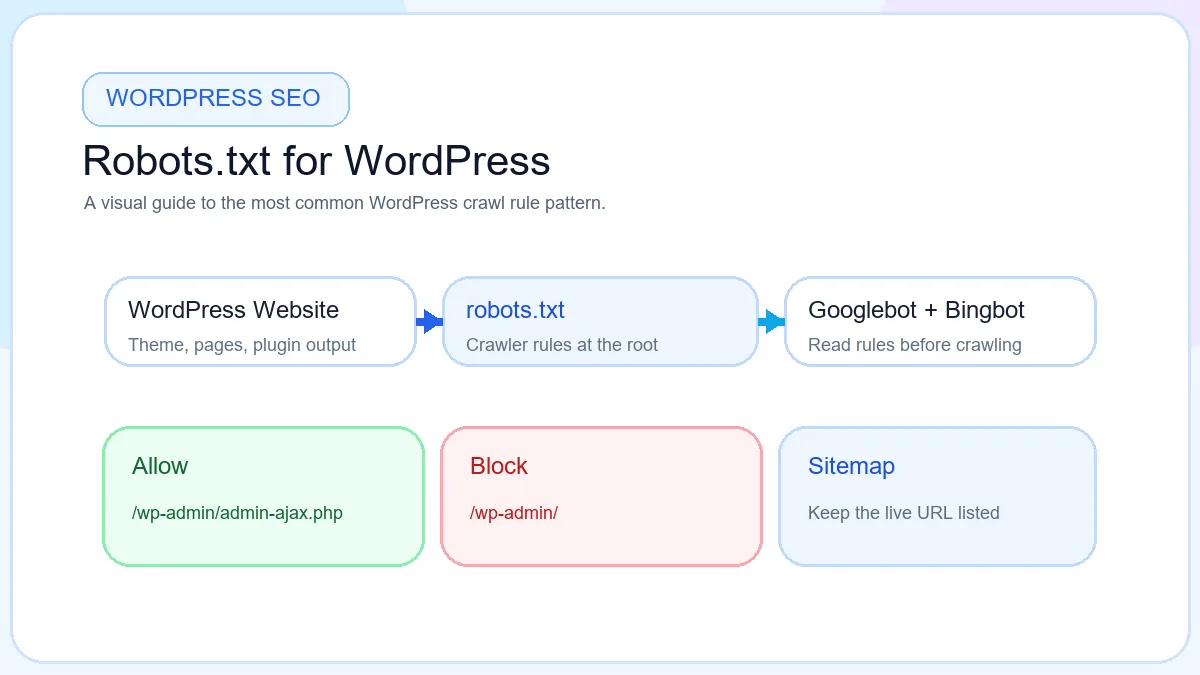
Robots.txt WordPress setup is usually simple: place the file at your domain root, block /wp-admin/, allow /wp-admin/admin-ajax.php, and add your sitemap URL. A clean file helps search engines crawl WordPress more efficiently without wasting time on admin sections, cart paths, or thin utility pages.
WordPress Robots.txt Checklist
Block wp-admin
Keep crawler attention away from the WordPress dashboard area.
Allow admin-ajax.php
Leave this endpoint open for front-end WordPress and plugin behavior.
Add sitemap URL
Point crawlers to the live sitemap generated by WordPress or your SEO plugin.
Do not block CSS
Stylesheets help search engines understand page layout and rendering.
Do not block JavaScript
Scripts may support menus, templates, checkout flows, and interactive blocks.
Test after plugin changes
Review the live file after adding SEO, cache, WooCommerce, or membership plugins.
What Is Robots.txt In WordPress?
In WordPress, robots.txt is the public crawl instruction file that tells search engines which parts of your site they should skip and which areas they may still access. It lives outside the visual editor experience, but it affects how Googlebot and Bingbot approach the site structure behind your posts, pages, categories, media, and plugins.
The purpose is not to hide content. The purpose is to guide crawling. For a WordPress site, that often means stopping bots from spending unnecessary time inside admin paths, duplicate search URLs, or low-value utility sections while keeping real content, assets, and sitemap discovery open.
This matters because WordPress sites grow quickly. A simple blog can add categories, tag archives, author pages, search pages, attachment URLs, plugin assets, and more. Without a clear wordpress robots.txt strategy, crawlers may spend attention on paths that do not help your organic visibility.
Does WordPress Create Robots.txt Automatically?
Yes, WordPress can output a virtual robots.txt file automatically. If you install a fresh WordPress site and open https://example.com/robots.txt, you may see a simple robots file even when no physical file exists in your hosting file manager.
A virtual robots.txt file is generated by WordPress at request time. A physical robots.txt file is an actual file stored in your root directory. Once a physical file exists, that version is usually the one you manage, edit, back up, and test directly.
The virtual file can be fine for a new blog, but a custom wordpress robots.txt file gives better control when you add WooCommerce, SEO plugins, custom search pages, membership sections, or a dedicated sitemap setup. That is why many site owners eventually move from the automatic file to a reviewed custom version.
Where Is Robots.txt Located In WordPress?
The final robots.txt file should be located in the root directory of your live WordPress install so it loads at https://example.com/robots.txt. The root directory is the top-level folder that serves your homepage, not a theme folder, plugin folder, or uploads folder.
If you manage files through cPanel, FTP, SSH, or your host file manager, look for the directory that contains WordPress core folders such as wp-admin, wp-content, and wp-includes. That is usually where the physical robots file belongs.
A quick test is simple: after uploading, open the live robots.txt URL in your browser. If you do not see the new file there, it is in the wrong place or a cached version is still being served.
How To Edit Robots.txt In WordPress
Before you change robots.txt WordPress rules, back up the current file or copy the existing text somewhere safe. Then edit only the live root file, not a theme folder, plugin folder, or uploads folder. After saving, always open the live /robots.txt URL and confirm the browser shows the new version.
cPanel File Manager
Open the root directory, create or edit robots.txt, save the file, and test the live URL.
FTP or SFTP
Connect to hosting, upload the plain text file to the WordPress root, then verify it in the browser.
Yoast SEO
If your setup exposes a wordpress robots.txt editor, use it carefully and confirm the final live file.
Rank Math
Review Rank Math's robots-related options, update rules only when needed, and test important URLs after saving.
If you are unsure where to start, build the rules with a WordPress robots.txt generator, review the preview, then paste or upload the final file through the method your host supports.
Recommended Robots.txt For WordPress
Most WordPress sites do not need a long file. A short, readable configuration is easier to maintain and less likely to break after theme or plugin changes. A practical starter version looks like this:
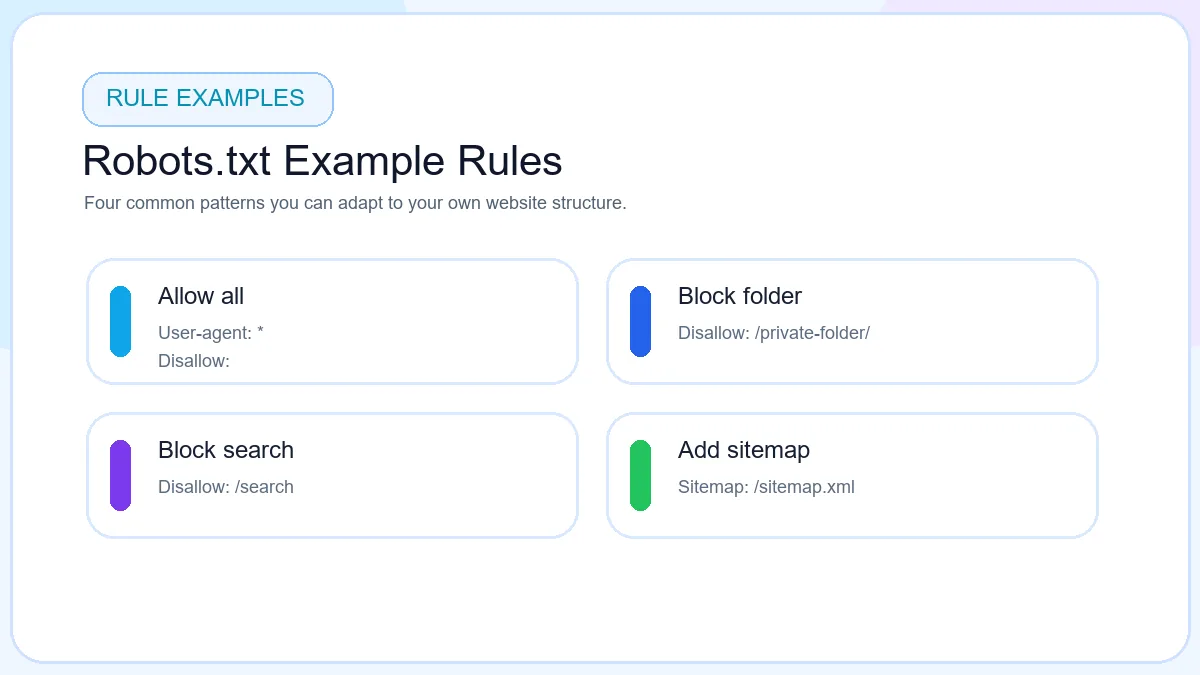
Each line has a clear job. User-agent: * applies the rules to all compliant crawlers. Disallow: /wp-admin/ keeps crawlers out of the admin area. Allow: /wp-admin/admin-ajax.php keeps an important WordPress endpoint open. The sitemap line tells search engines where your key URLs can be discovered.
This is a strong default for bloggers, service sites, publishers, and many business websites. It is also a safe place to start before you create more specialized rules with the Robots.txt Generator.
Why This Setup Works
Blocks wp-admin
Admin screens stay out of routine crawl activity.
Allows admin-ajax.php
WordPress front-end requests remain accessible when needed.
Includes sitemap URL
Search engines get a direct discovery path for important URLs.
Keeps rules simple
Short rules are easier for beginners, bloggers, and small teams to maintain.
Fits most sites
This setup works for many WordPress blogs and business websites before ecommerce-specific rules are added.
WordPress Robots.txt Example For SEO
A more complete wordpress robots.txt example may vary depending on the site model. Blogs usually want clean post crawling, affiliate sites may want to limit internal search URLs, and WooCommerce stores often need cart-related paths controlled more carefully. A flexible SEO-friendly example can look like this:
Not every site needs every rule. A blog without ecommerce does not need cart or checkout directives. A business brochure site may not even have internal search indexed meaningfully. The real goal of robots.txt for WordPress SEO is to keep the file aligned with your actual template structure, not to paste a one-size-fits-all block list.
WordPress robots.txt rules should stay readable, site-specific, and easy to review after changes.
wp-admin Rules Explained
Blocking /wp-admin/ is common because the admin dashboard is not useful in search results and does not deserve regular crawl attention. The admin area contains login workflows, management screens, and technical endpoints that do not serve search visitors.
The reason admin-ajax.php is usually allowed is that front-end features and plugins may depend on it. If you block the entire admin area without that allow rule, you can create rendering or interaction issues that make the site harder for crawlers to understand correctly.
That one exception is what makes WordPress different from a generic static site. A normal site might simply block an admin folder and move on. A WordPress install often needs a narrower rule set because plugins, themes, and dynamic front-end components behave differently.
WordPress Robots.txt For WooCommerce
WooCommerce adds more crawl decisions than a normal blog. Product pages, category pages, and useful brand collections should usually stay open, while cart, checkout, account, and low-value search or filter pages often deserve tighter control. A good wordpress robots.txt ecommerce setup protects crawl focus without hiding real shopping pages.
Should WooCommerce Cart Pages Be Blocked?
Cart pages usually do not need search visibility because they are session-based and not useful as organic landing pages. In most stores, blocking the cart path is reasonable as long as product and category URLs remain open.
Should Checkout Pages Be Blocked?
Checkout pages are transactional and can change based on customer state, coupons, shipping, and payment logic. They should normally be kept out of regular crawling so search engines focus on products, collections, and helpful content.
Should Account Pages Be Blocked?
Account pages usually contain login or customer-specific flows. They are not useful for search visitors and should not be treated as SEO landing pages.
WooCommerce Robots.txt Example
A woocommerce robots.txt example may include these disallow rules only when they reflect your actual URL structure:
The point is not to block everything dynamic. The point is to reduce crawl waste. Product pages, main collections, and important landing pages should remain crawlable. Category pages may be valuable when they are unique, useful, and part of your store navigation. Overblocking filters can also go wrong if your store architecture depends on those URLs in a meaningful way, so test before publishing.
Robots.txt And Yoast SEO
Yoast SEO usually helps most with sitemap generation and broader WordPress SEO management rather than turning robots.txt into a complex rules engine. If your sitemap is generated by Yoast, the most important robots.txt task is simply making sure the file references the correct live sitemap URL.
After activating or changing Yoast settings, open your live robots.txt file and confirm the sitemap line is still accurate. If you use a staging domain, caching layer, or CDN, double-check that the live domain version is the one being referenced. This is also a good time to review whether you still need a virtual file or whether a physical file is safer.
Robots.txt And Rank Math
Rank Math users should follow the same principle: keep the robots file simple, validate the sitemap reference, and review the live output after changes. The plugin can support sitemap handling and SEO workflows, but the final robots rules still need human review.
If Rank Math updates your sitemap path or if you change the main site structure, revisit the live file. A good wordpress robots txt setup is not defined by the plugin name. It is defined by whether the final rules still match the current site architecture.
Yoast SEO vs Rank Math For Robots.txt
Both plugins can support a WordPress SEO workflow, but neither removes the need to review the final live robots.txt file. Choose the plugin that fits your site management style, then test the output after sitemap or robots settings change.
Feature
Yoast SEO
Rank Math
Sitemap Support
Strong built-in sitemap handling.
Strong sitemap handling with broad SEO controls.
Robots.txt Editing
May support editing depending on setup and access.
May support robots-related editing depending on configuration.
Beginner Friendly
Simple and familiar for many WordPress users.
Feature-rich, with more settings to review.
Free Version
Useful for many basic WordPress SEO tasks.
Useful for many basic and expanded SEO tasks.
SEO Settings
Focused, established workflow.
More configurable workflow for advanced users.
Best For
Bloggers and site owners who prefer a straightforward setup.
Site owners who want more SEO controls in one plugin.
Common WordPress Robots.txt Mistakes
The most common mistake is overblocking. Site owners copy code from another blog and accidentally block paths that matter on their own site. That includes CSS, JavaScript, important landing pages, or valuable search-friendly categories.
Another frequent error is forgetting the sitemap line. Search engines can still crawl without it, but sitemap discovery becomes less direct. Wrong rules after plugin changes are also common. A file that worked for a blog may no longer fit a WooCommerce build, membership plugin, or headless setup.
If you want the broader troubleshooting angle, read Common Robots.txt Mistakes That Hurt SEO. This WordPress page stays narrower and focuses on the mistakes most likely to appear in WordPress site management.
WordPress Robots.txt Best Practices
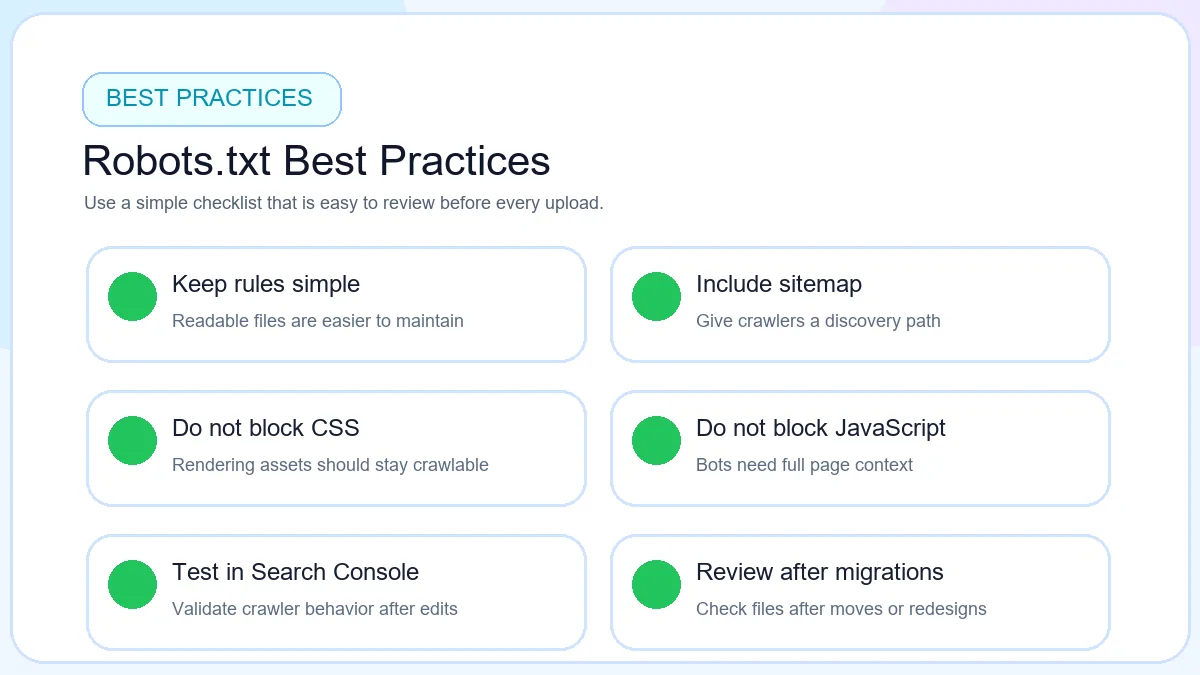
Keep rules simple
Short files are easier to review after theme, plugin, and hosting changes.
Include sitemap URL
Reference the live sitemap generated by WordPress, Yoast, Rank Math, or your preferred setup.
Allow admin-ajax.php
Do not block a front-end endpoint that many WordPress experiences still rely on.
Avoid blocking CSS
Rendering assets help search engines understand layout and page quality correctly.
Avoid blocking JS
JavaScript can support templates, menus, and front-end behavior that crawlers still need to see.
Review after plugin changes
New plugins may add paths, features, or front-end behaviors that change crawl priorities.
Audit after migrations
Moved domains, new themes, or WooCommerce rebuilds often make old rules outdated fast.
WordPress robots.txt best practices should stay practical, easy to audit, and aligned with real site structure.
Helpful SEO Tools For WordPress
If you want a faster workflow, start with the Robots.txt Generator to build clean rules and preview the final file before upload. Pair it with the XML Sitemap Generator so the sitemap line stays accurate after changes.